Log in to the site. Kasirco Laundry
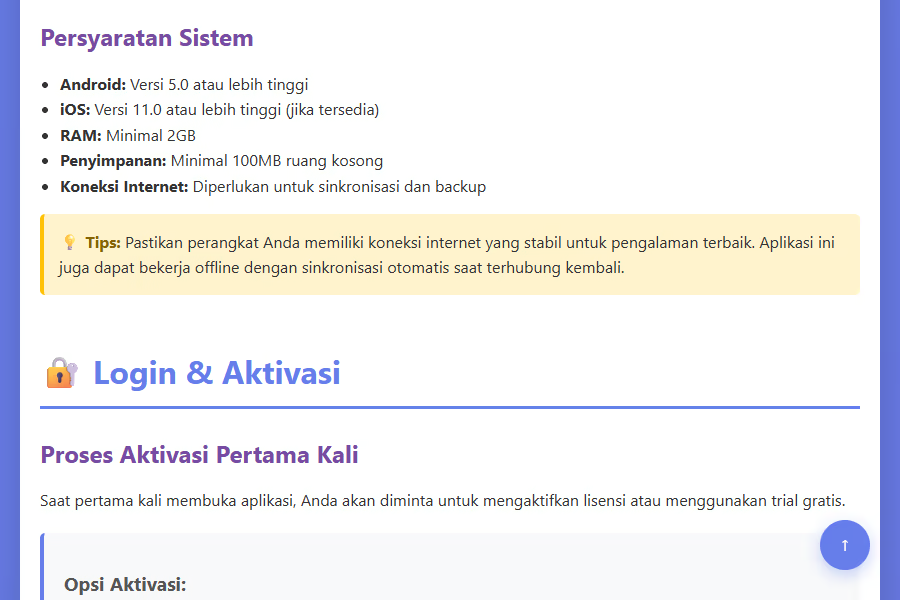
- The content User name and Password The admin gave it to me. Use the eye icon on the password column when you need to check the entries.
- Remember me It's optional. Activate only on business-specific tablets; do not activate on shared or personal staff devices.
- Make sure the box I agree to the Terms and Conditions and Privacy Policy Keep your eyes on it. The key Get in there. cannot be used if this consent is not checked.
- Press the button. Get in there.. Once it works, the app immediately displays the dashboard according to the account access rights.
- Use it Read the article "How to Become a Witness" When you need a guide from the login screen.
1. Know the main menu
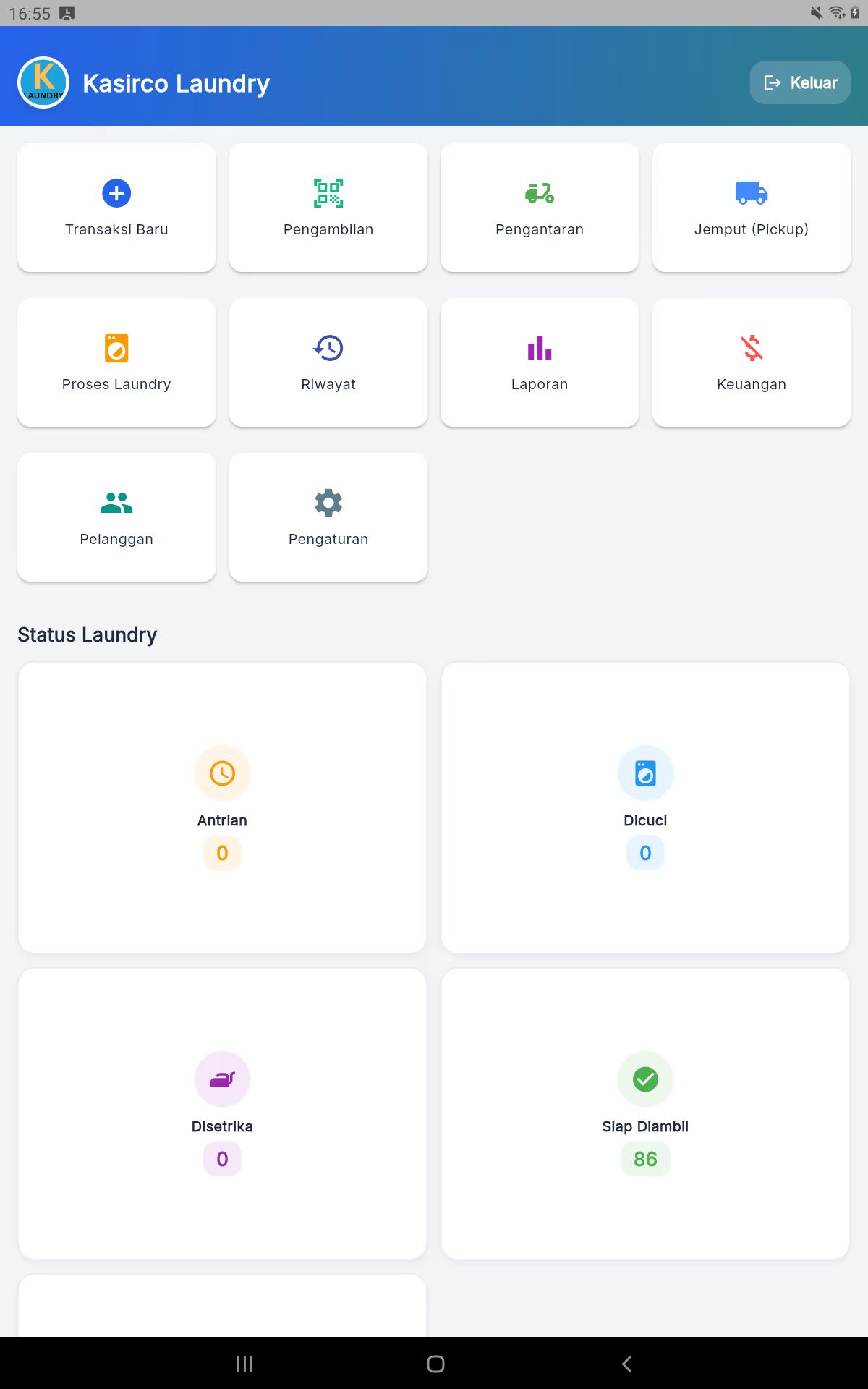
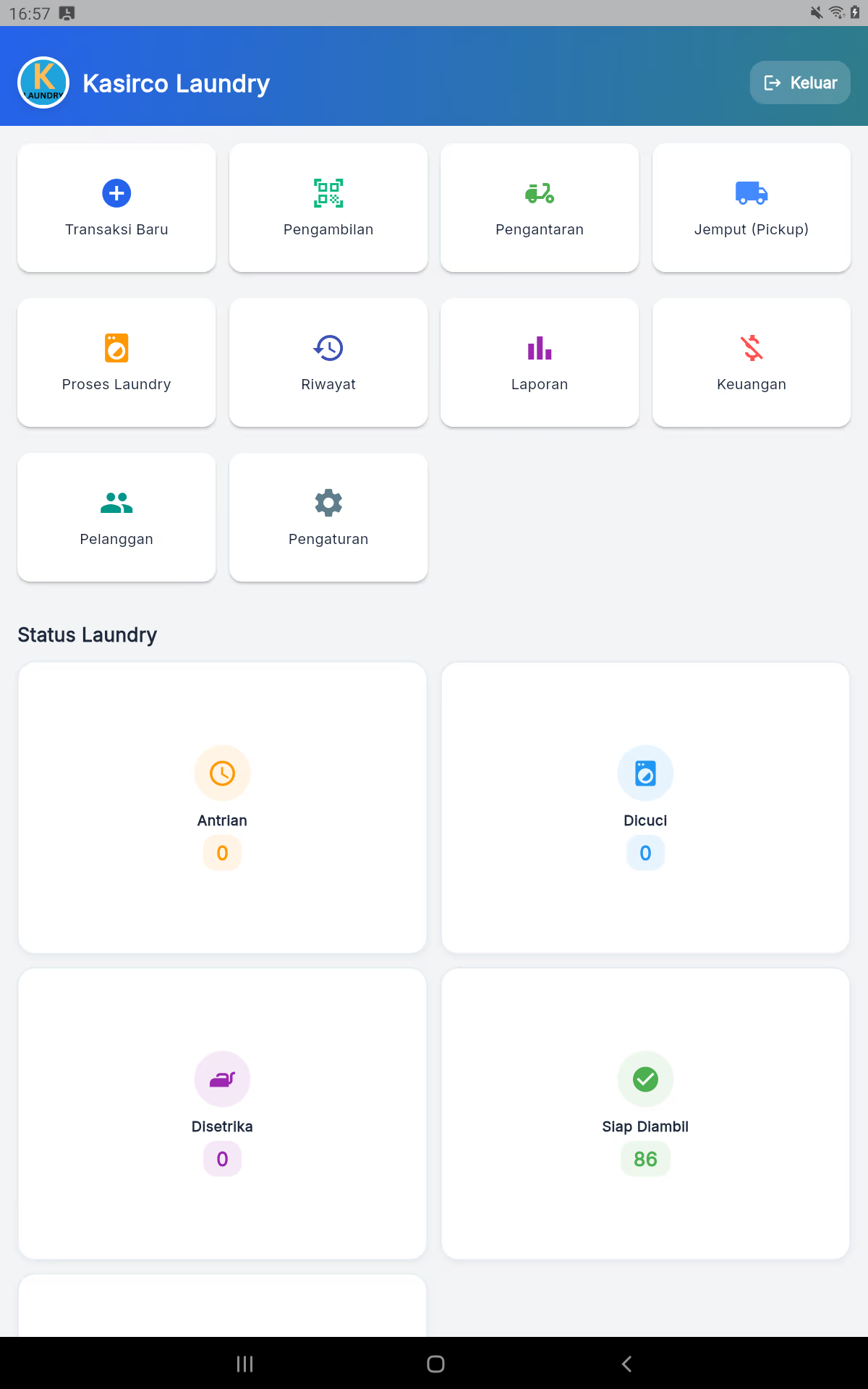
Operational
New transactions, laundry process, pick up, ship and pick up.
The administration
History, customers, finance, reports and regulation.
Status of the
Queue → Washed → Disetricated (if necessary) → Ready to Pick up or Ready to Drop.
2. New transactions and payments
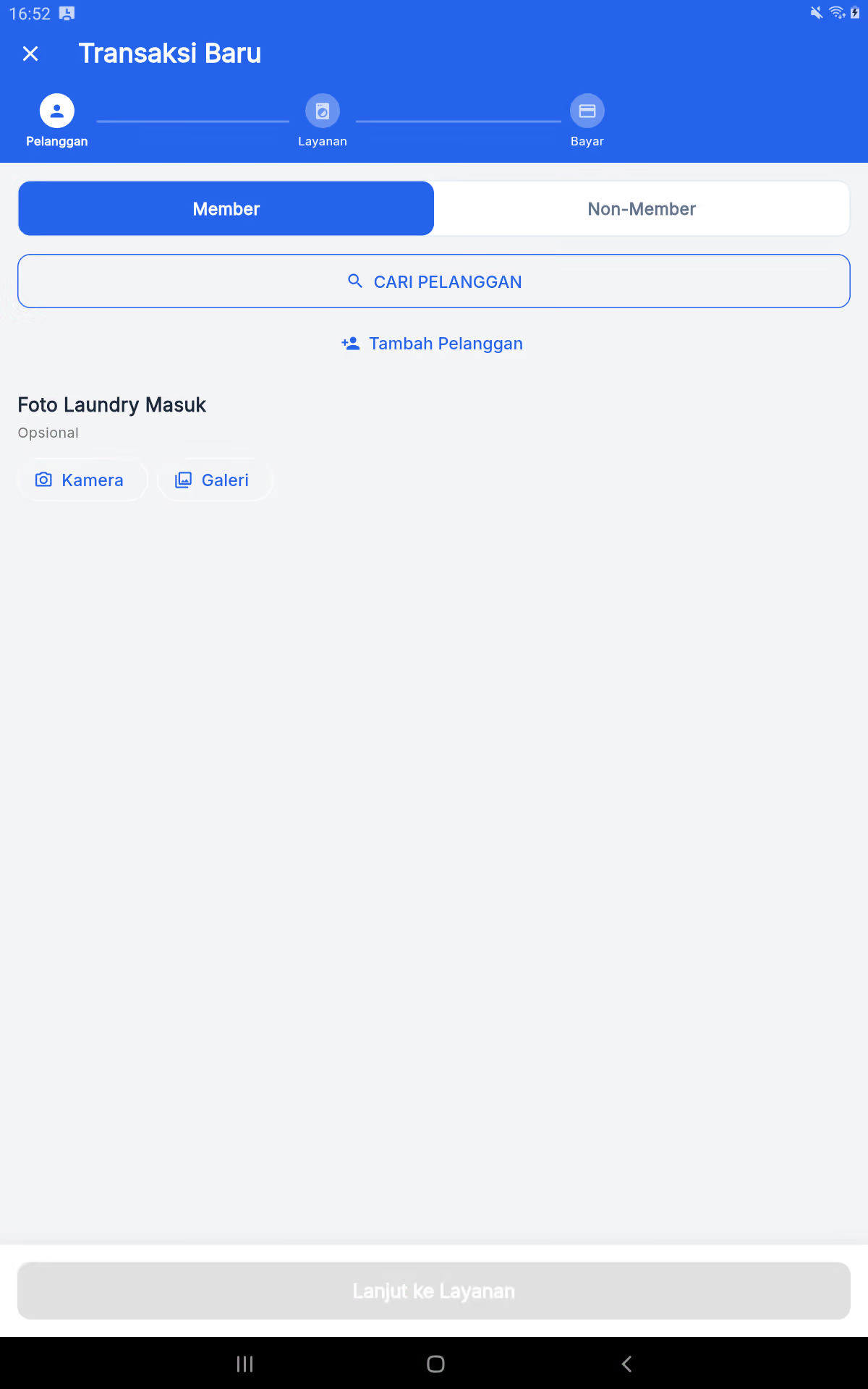
- Open it up. New deal, then choose Member Or Non-Members.
- For the member, use Find the customer Or Adding Customers. Make sure the name and phone number are correct.
- If necessary, take some Photo of the laundry is coming in. With a camera or a gallery. Local-storage photos and watermarks.
- Press the button. Keep on the Service, select service, weight/number, estimate, and special notes.
- Add items to the basket. Check every item before pressing Next up.
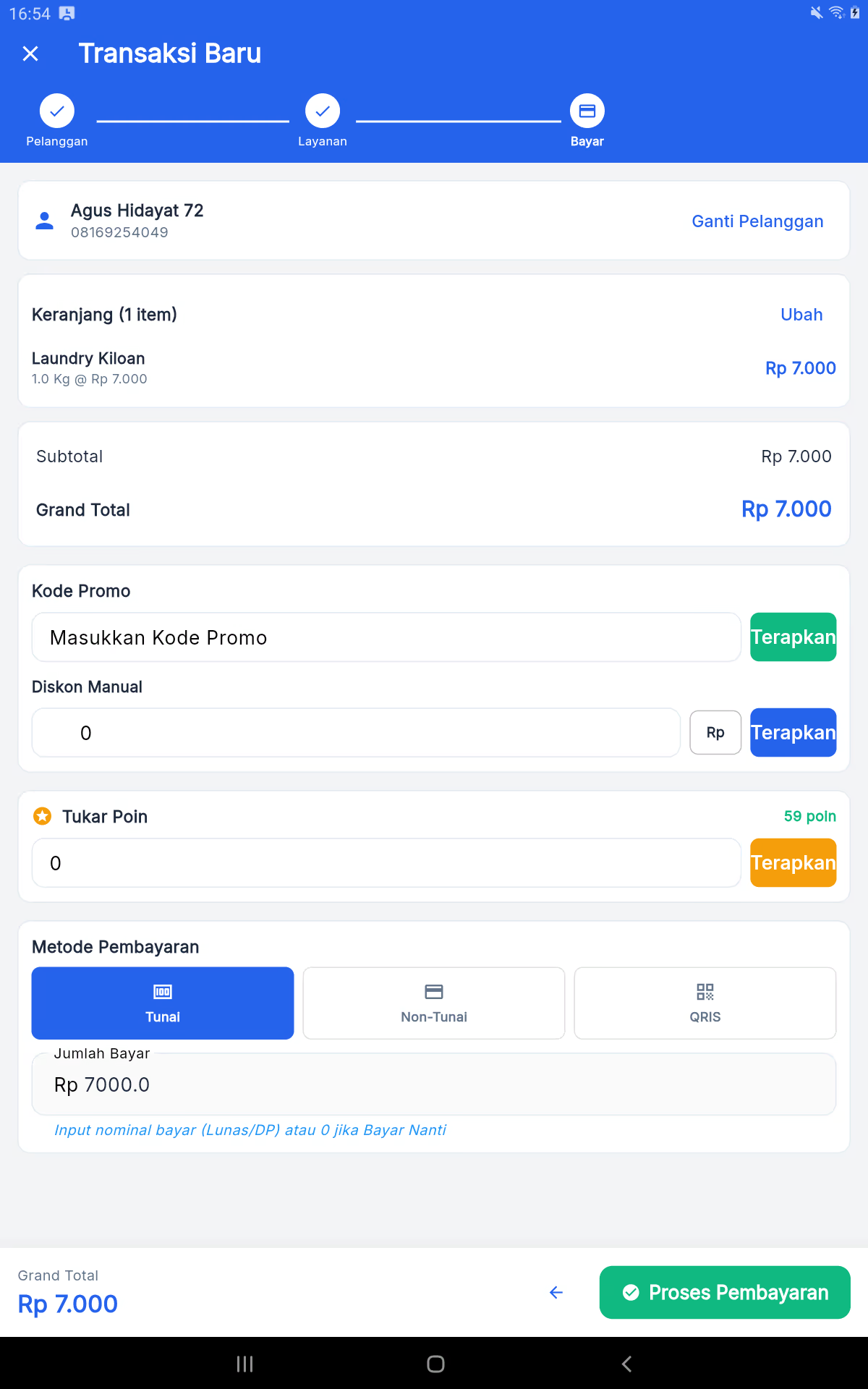
- In Pay, total check, manual promo/discount, exchange points, payment method, then nominal fill: pay, DP, or 0 to pay later.
3. Services, allowances and other services
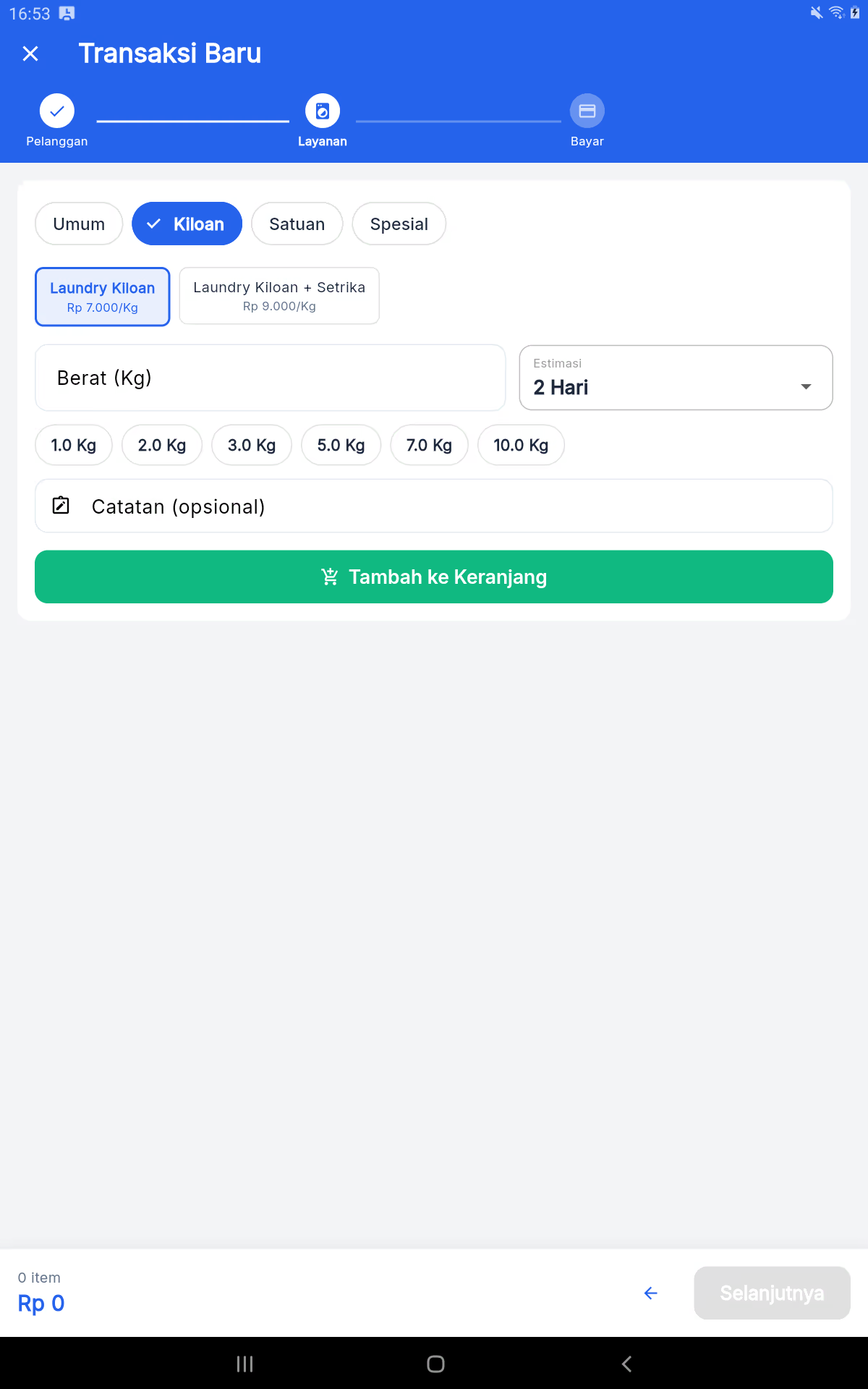
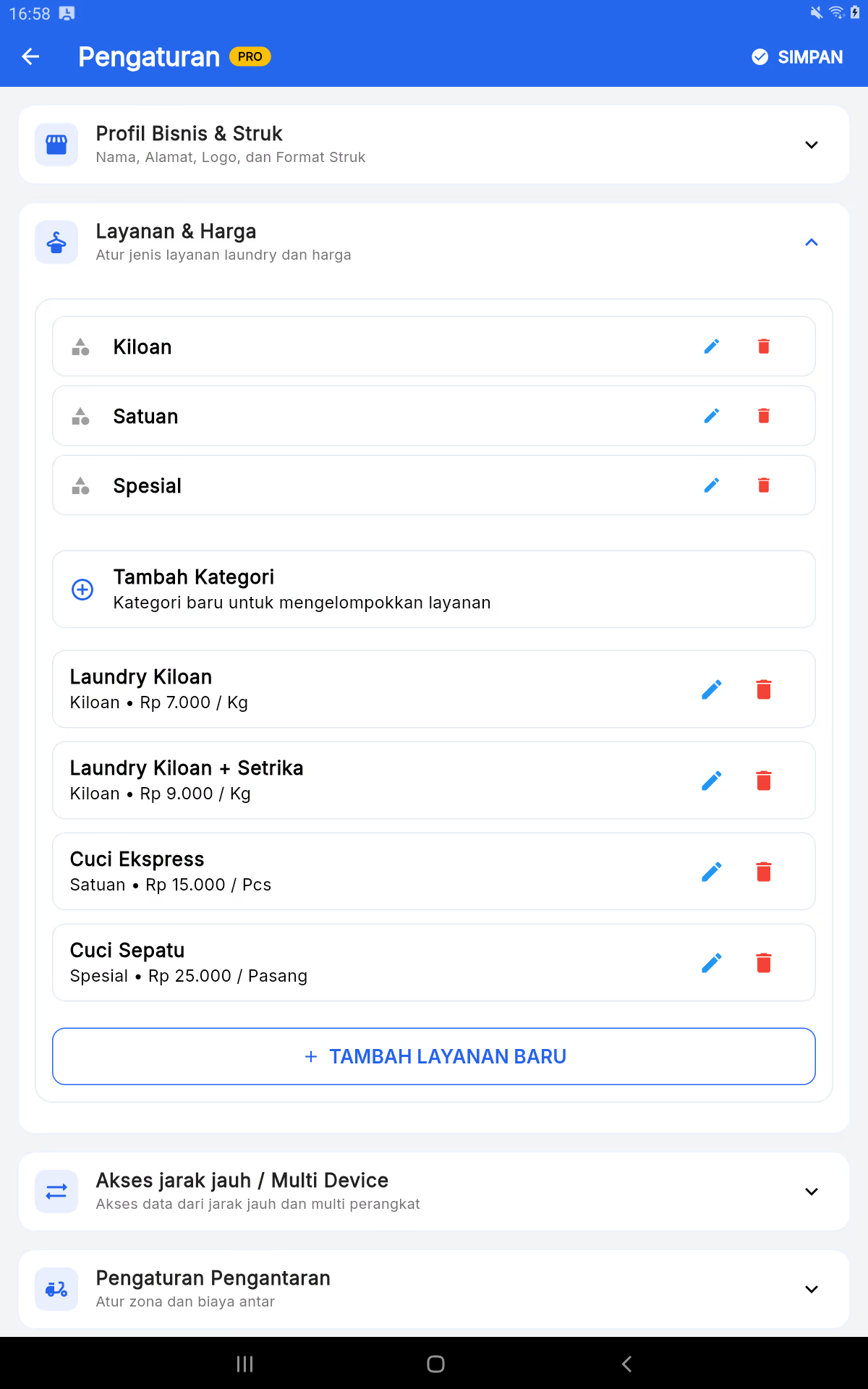
Add new services
This menu is in Settings → Services & Prices → Adding New Services, not on the New Transaction page.
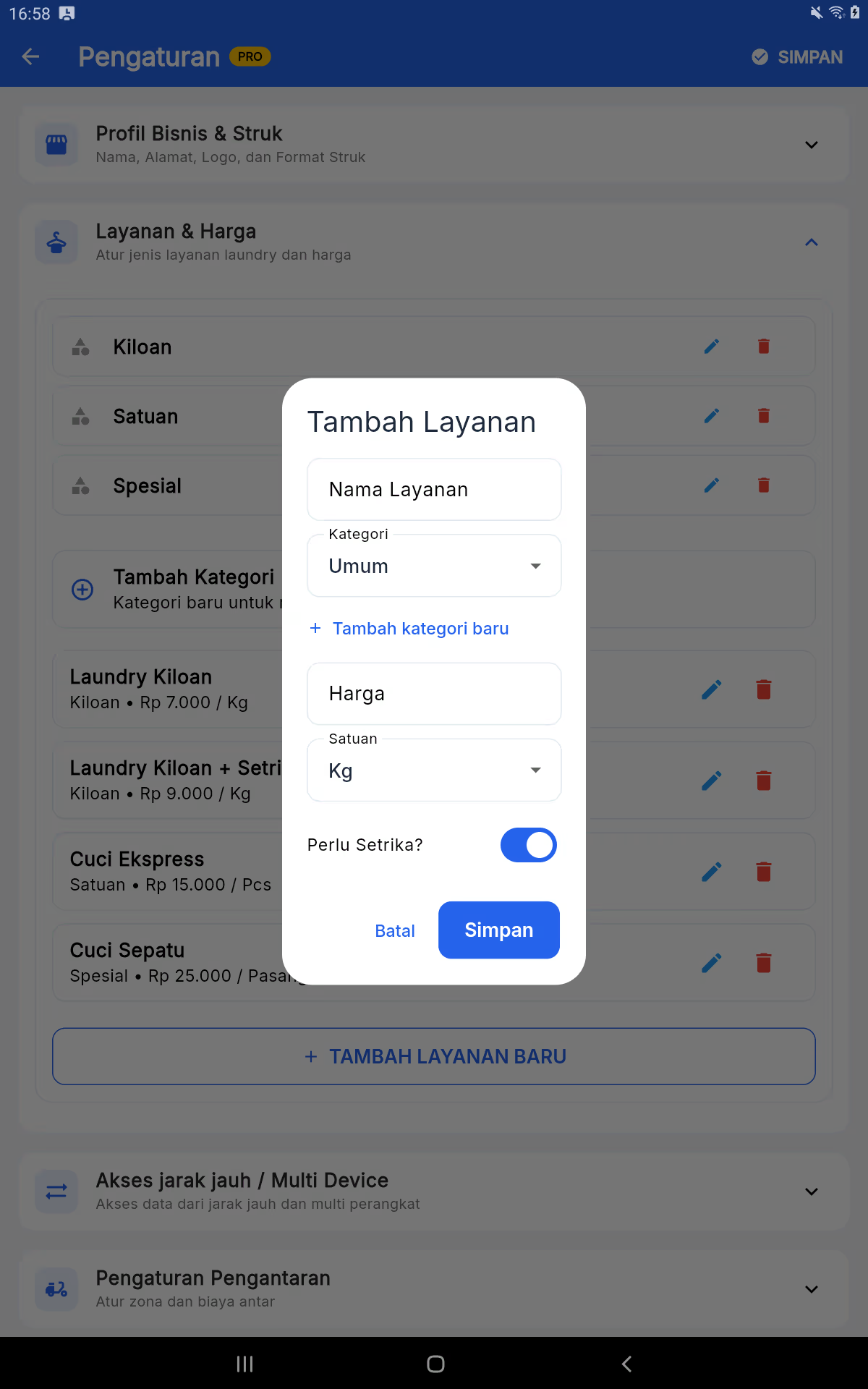
- Open the Settings and expand Service & Price.
- Use it Added Category If the service group doesn't exist; use a short and clear name.
- Press the button. Adding New Services, fill in the name, select the category, unit (e.g. Kg, Pcs, or Paste), price, and status needed to be set.
- Save and then do the test transactions to make sure the price, estimate, and process flow are in line.
Discount and other services
For the transfer order, activate Message is delivered on the customer's footsteps. Fill in the address and select the zone on the pop-up trail; interim fees go into the total bill. Other services such as express, shoe washing, or unit service are made as a standalone service to keep revenue and reporting accurate.
4. Laundry process: all status
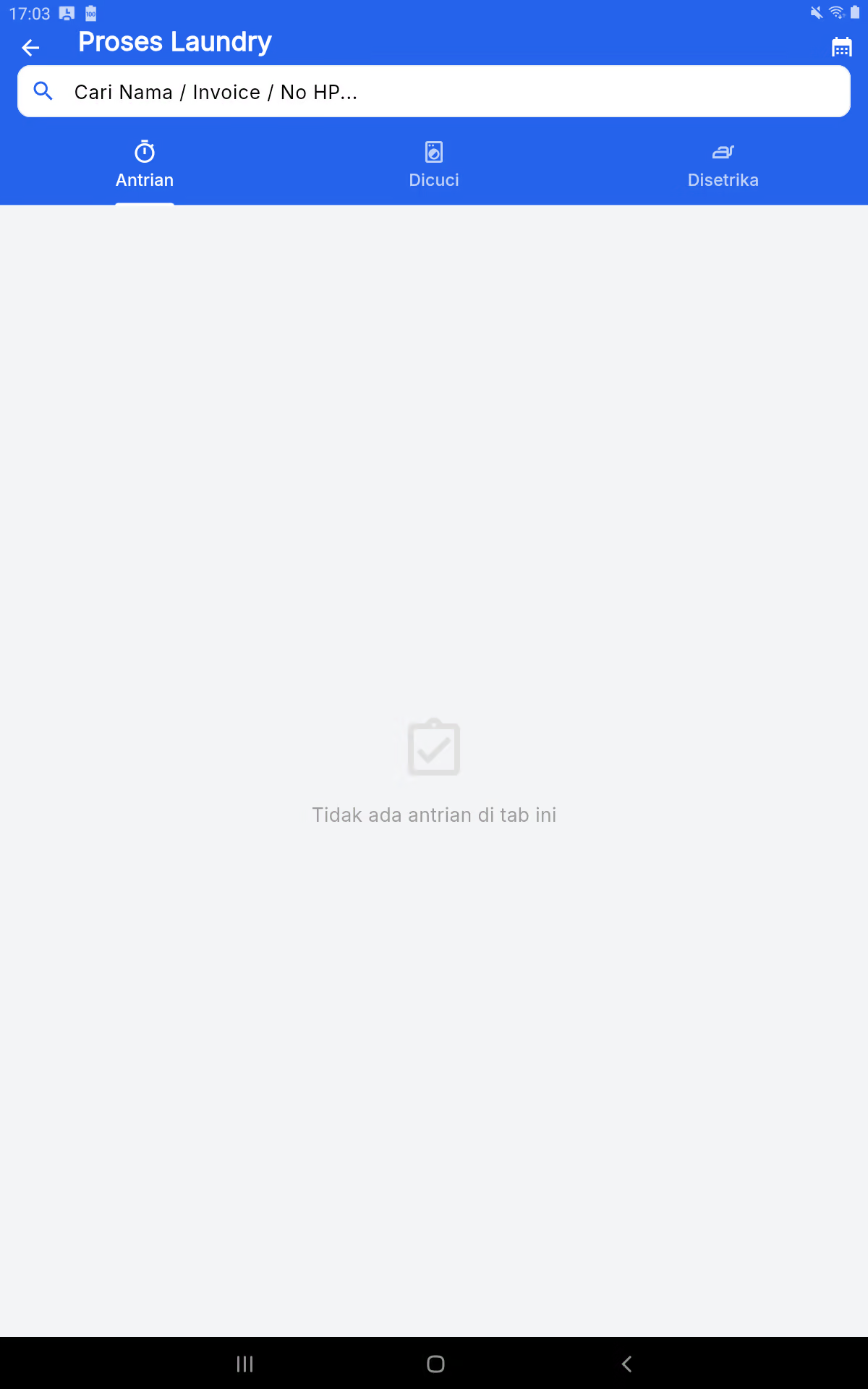
- Open it up. Laundry process, select the tab for the actual job and look for invoice/name if necessary.
- Select the item and run the next status. For washing purposes only, the groove can be directly from the Wash to the ready; do not force through the Disetrika.
- When the job is done, take a photo of the proof of completion if the application is requested. The final photo is watermarked with the business name, customer, invoice, and time completed/ready to be taken.
- Check the results of the changes on the status card. Do not process batches when one of the items is not ready.
5. Delivery
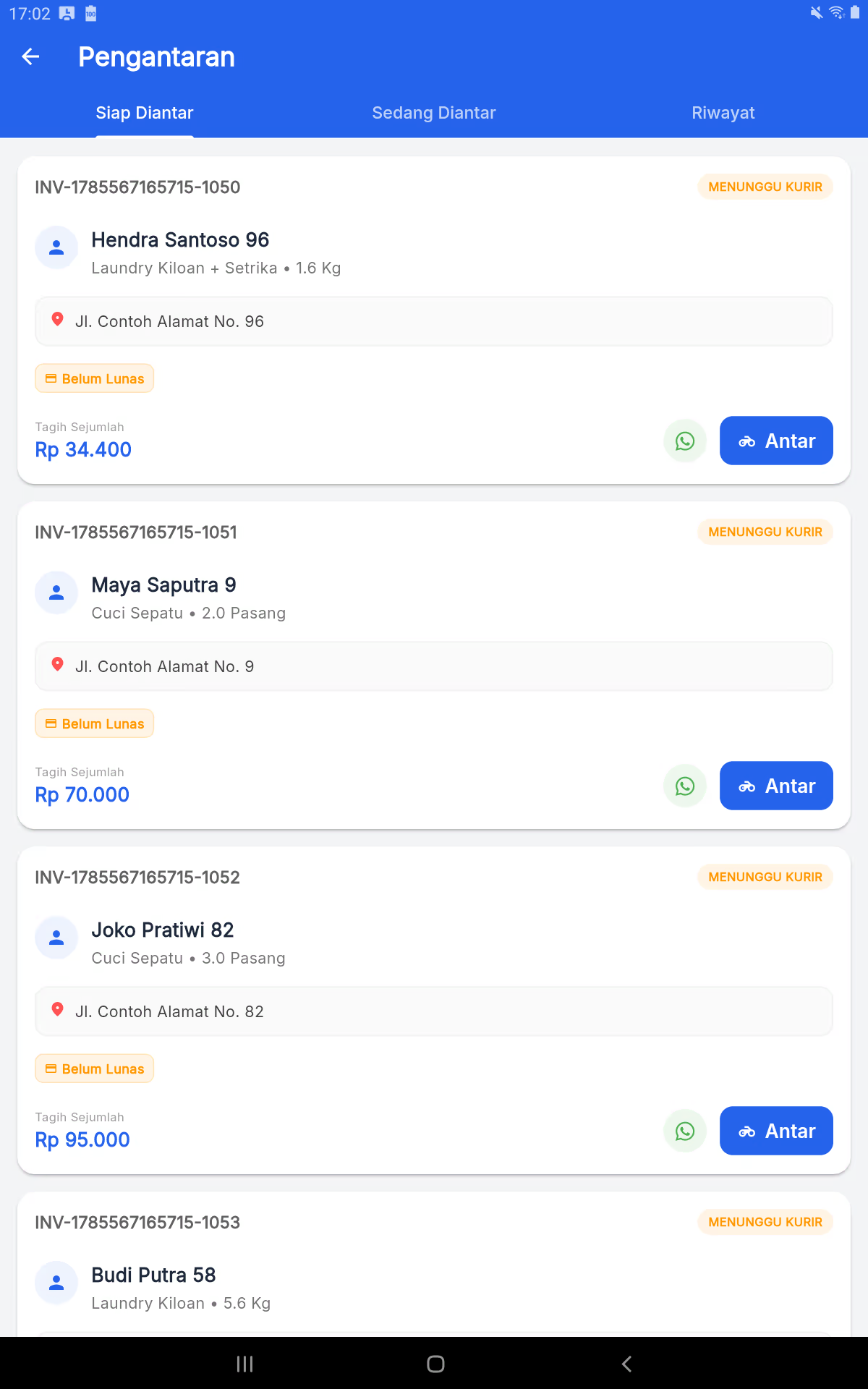
- Open it up. Delivery → Ready to be delivered And check names, addresses, services, and the rest of the bills.
- Press the button. Between When the courier really left. Status is moving to While Delivered.
- If there is a payment shortfall, a nominal stamp appears and records the payout through the available payment stream.
- Once the customer receives the order, complete the delivery to enter the history.
6. Recall and Reminder WhatsApp
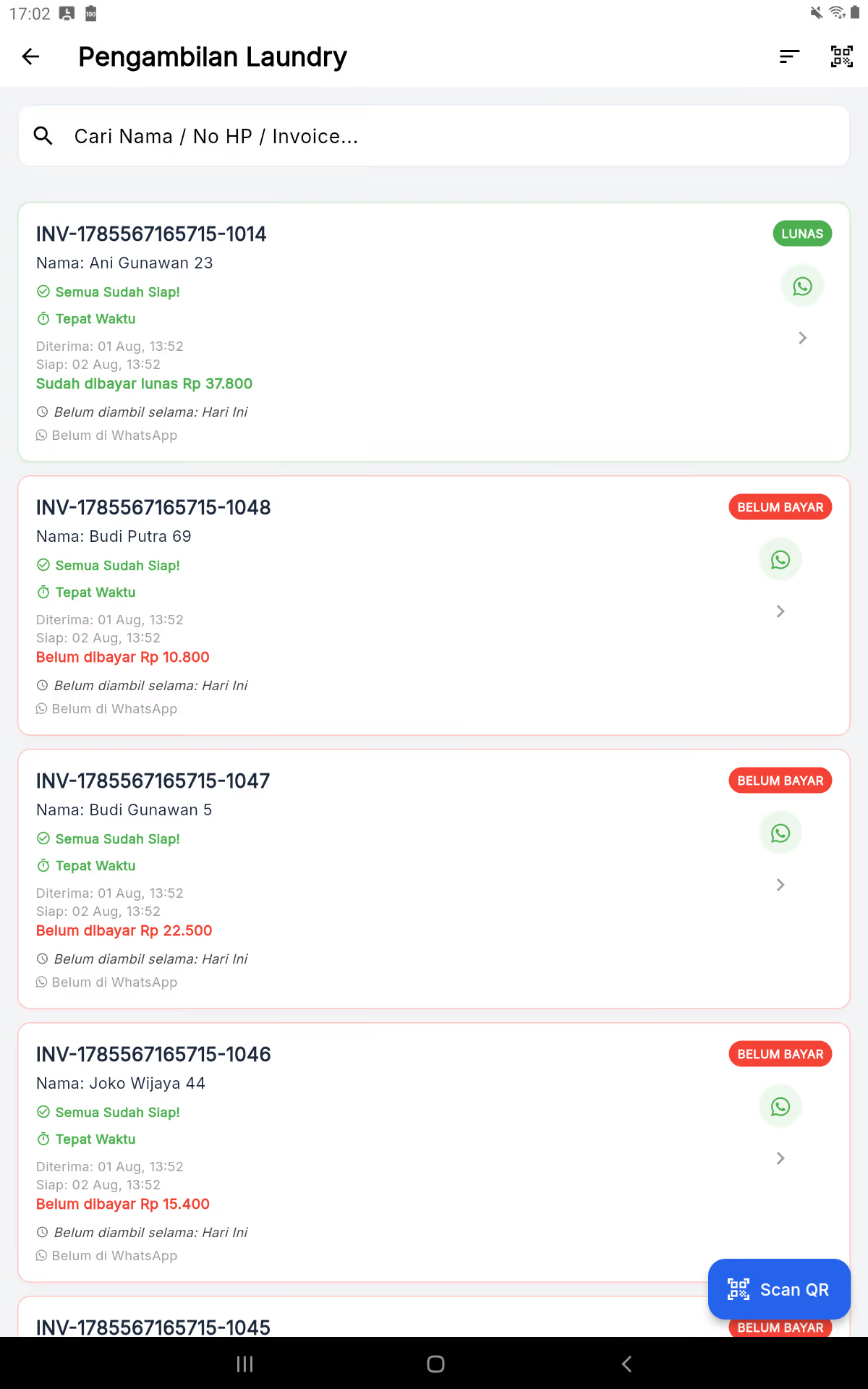
- Open it up. The take-upFind the invoice or use a QR scan when the customer brings a stick.
- Make sure all items are ready and match the name/invoice before handing over the laundry.
- If there's still a payment left, pick Pay the rest And finish the payment before the delivery.
- The WA button opens the app's selector. Android. The message contains names, invoices, service details/notes, payment status, and proof photos completed when available.
- Select submit & print, submit & send WA, or just submit as needed. Final status is taken.
7. History of the transaction
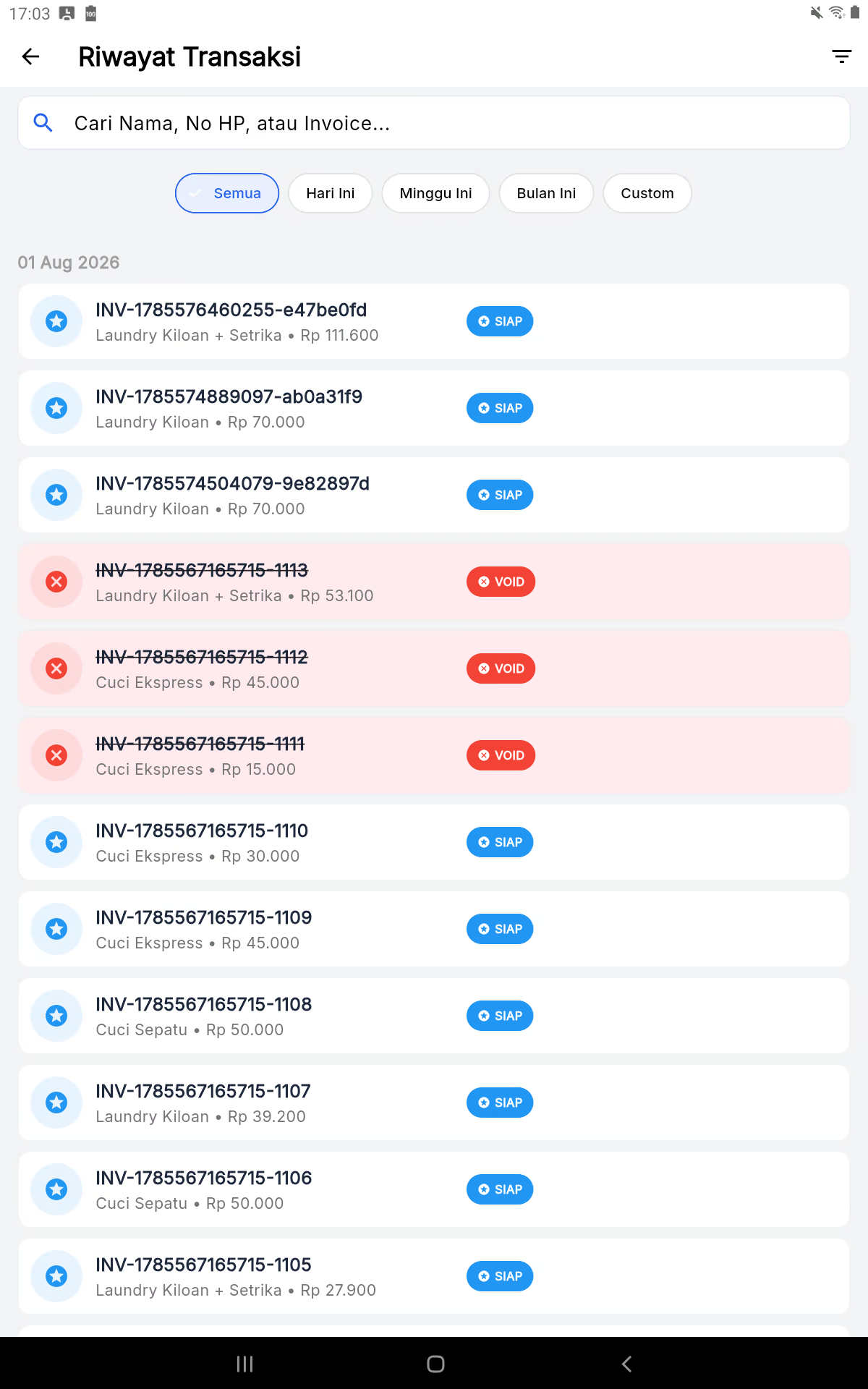
Use a search for a name, a phone number, or an invoice. Open the details to check items, payments, status, photos of evidence, and permitted actions. The void is only made in accordance with the company's policy as it affects the customer's reporting and balance.
8. Customers and points
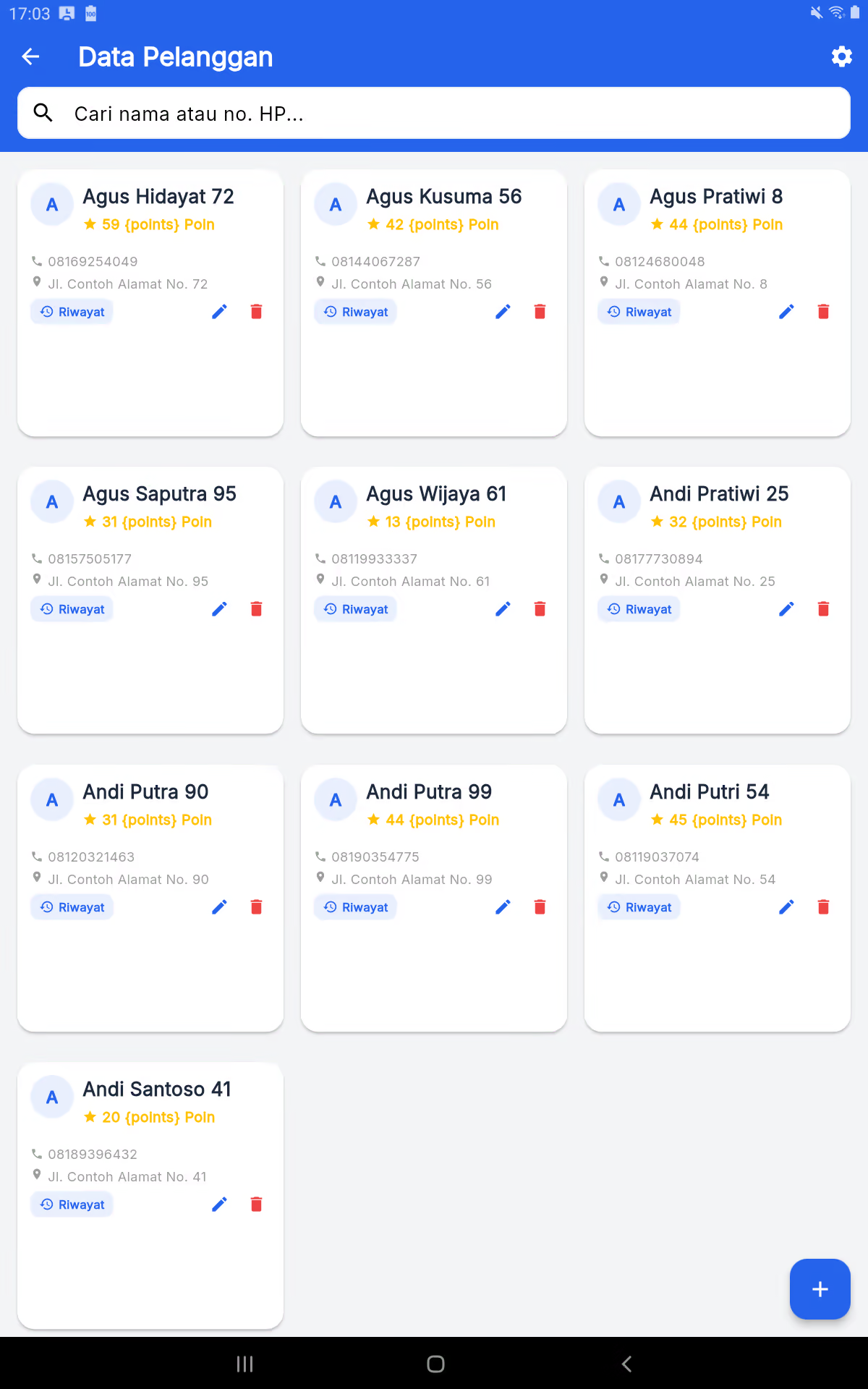
Add, change, and delete customers
- Open it up. The customer, use the add button to create new customers; fill in the name and phone number consistently to avoid duplication.
- Open the customer card to change the name, number, or address. Check the history before you change the identity data.
- Delete only completely false/duplicate profiles and not needed. Do not delete the customer to correct the transaction; use the corresponding transaction correction.
Customer points
Points can be obtained from transactions according to configuration and used on Payment steps via Exchange the points. Check the customer's balance before applying. The administrator sets the rules for point values, minimum transaction values, and conversion values in the Customer Point System.
9. Full report
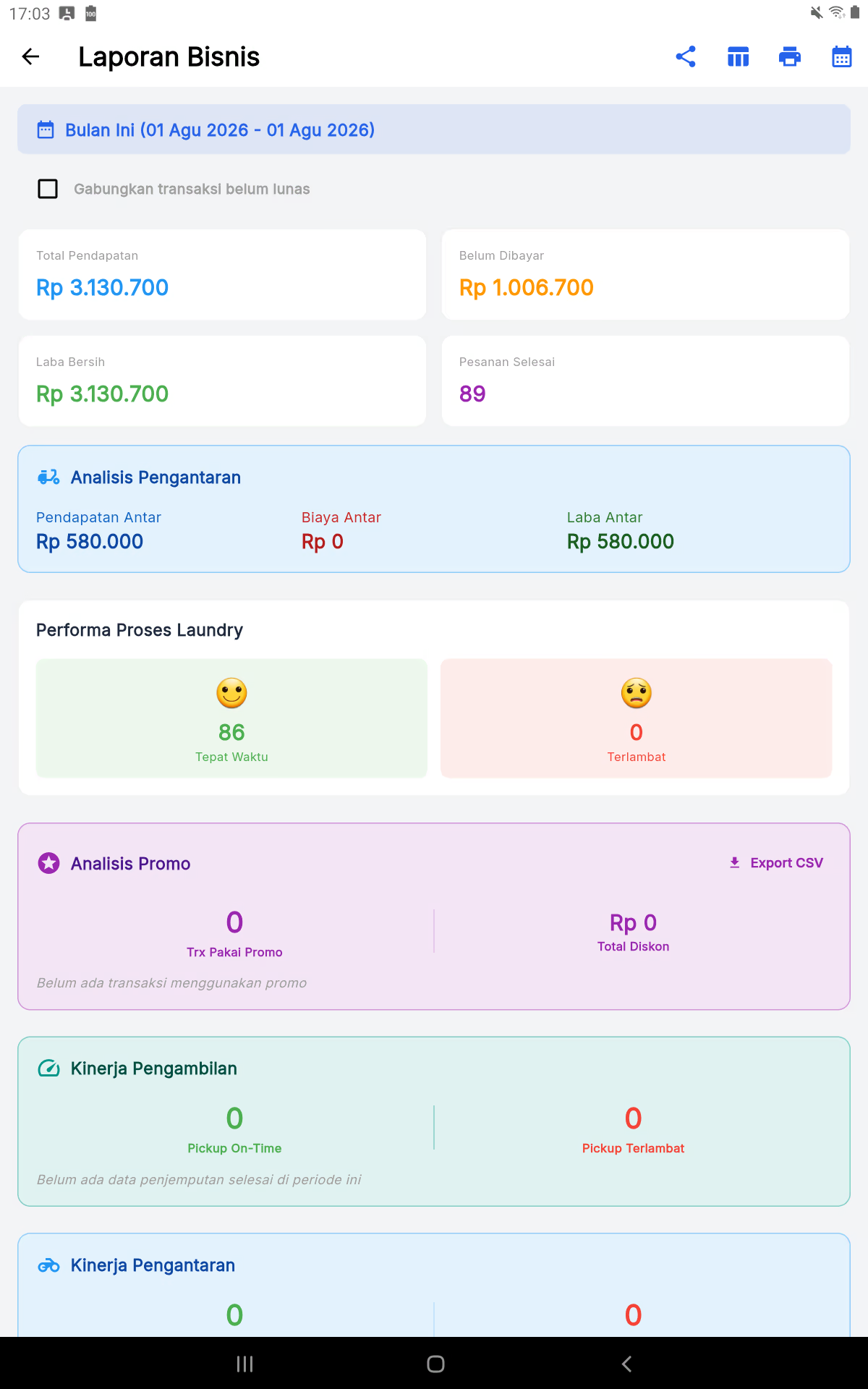
- Pick the right period before reading the numbers.
- Use the status/method filter when available.
- Read the full summary, then search for detailed data if there is a discrepancy.
- Export or submit reports only after the period and the filter is re-checked.
10. Full finance
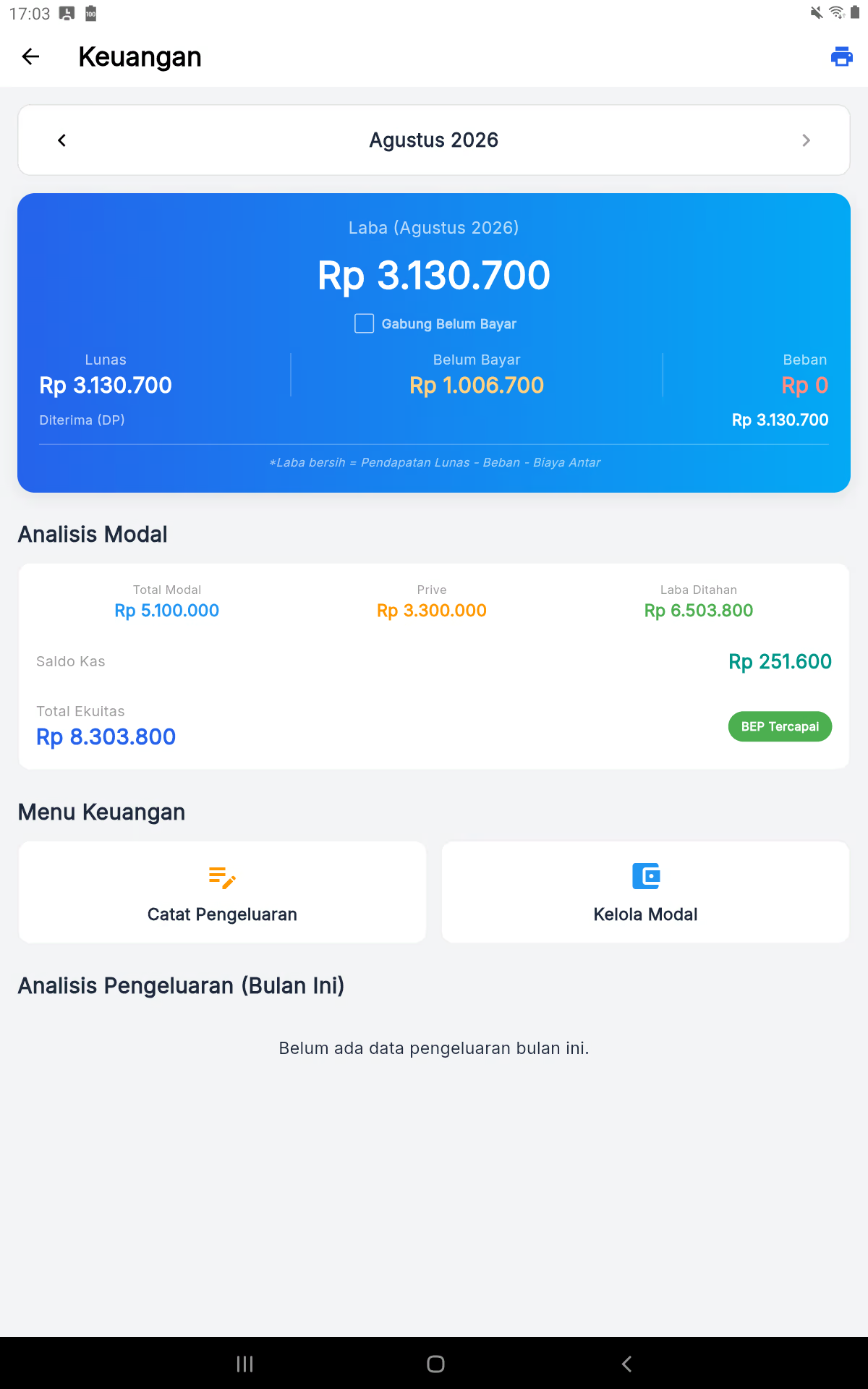
Use the Finance menu to view the transaction flows and the cost/capital records according to the available modules. Record the expenditure on the date, category, nominal, and accurate statement so that the profit is not too high. Write down capital separately from turnover. The payment of DP and the withdrawal should be made through the invoice payment stream, not as new income.
11. Full setup
12. Daily operational checklists
13. Help and Problem Solving
If the button or data does not match, record the invoice number, time of the event, and screenshot before contacting support. Don't delete data or reset apps as a first step.
13. Detailed operational arrangements
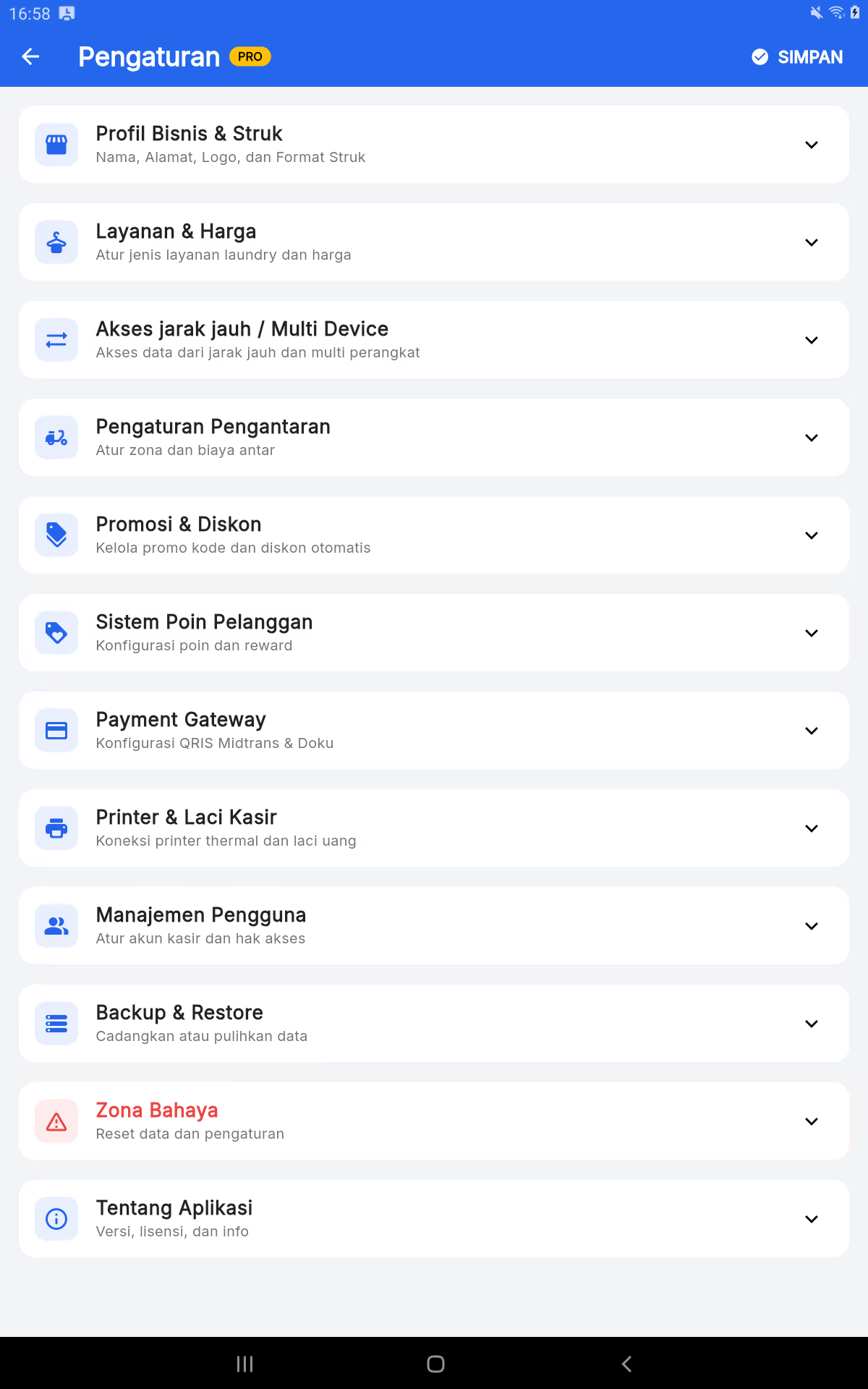
Business name, logo, and structure format
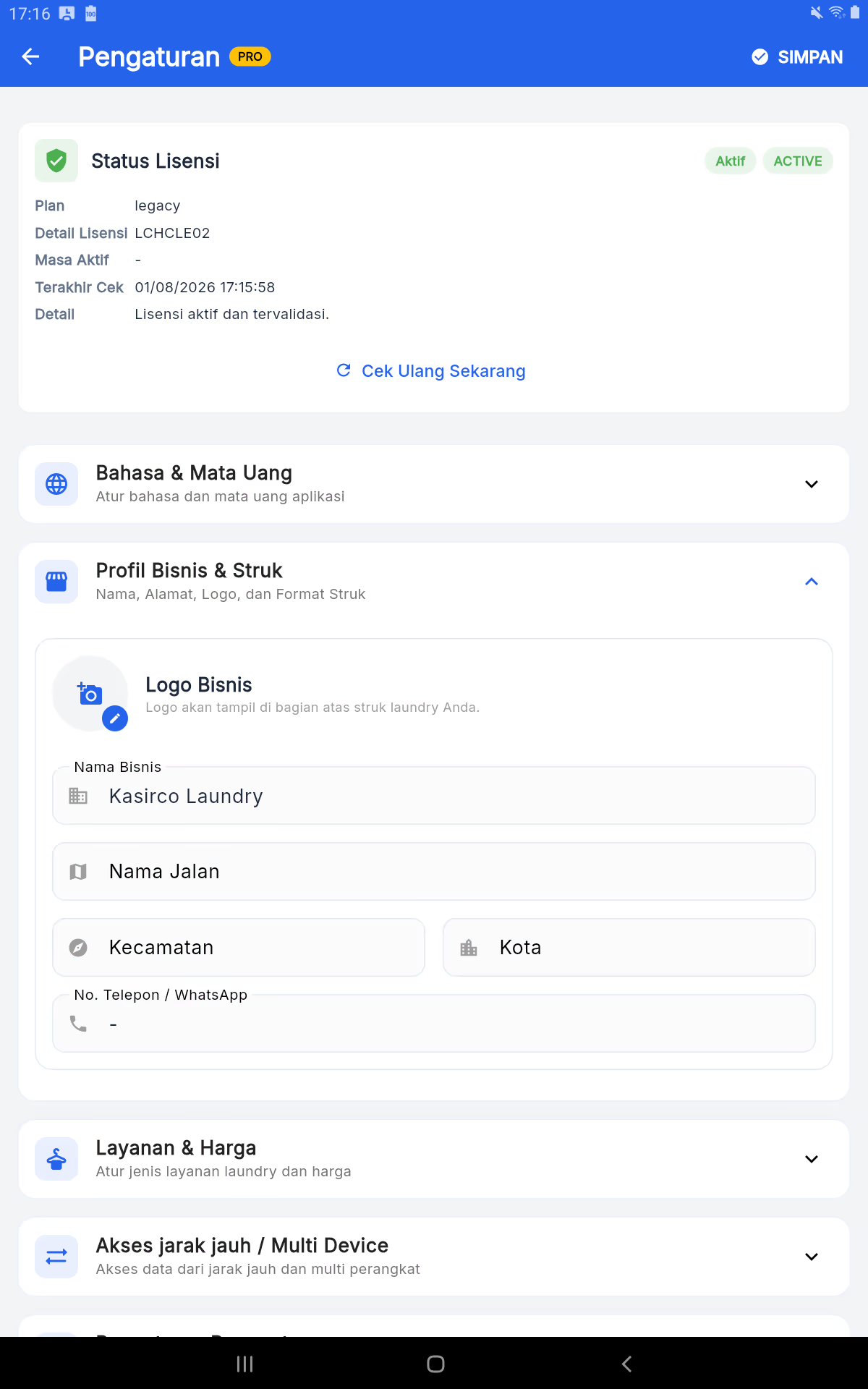
- Open it up. The organization of business and structure.
- Tap the logo to select the business logo image, then fill in the Business Name, address, district/city, and phone number.WhatsApp.
- Complete the text of the available text and press Keep it It's up on the right. Print one test transaction to check the results.
Dispatch and delivery zones
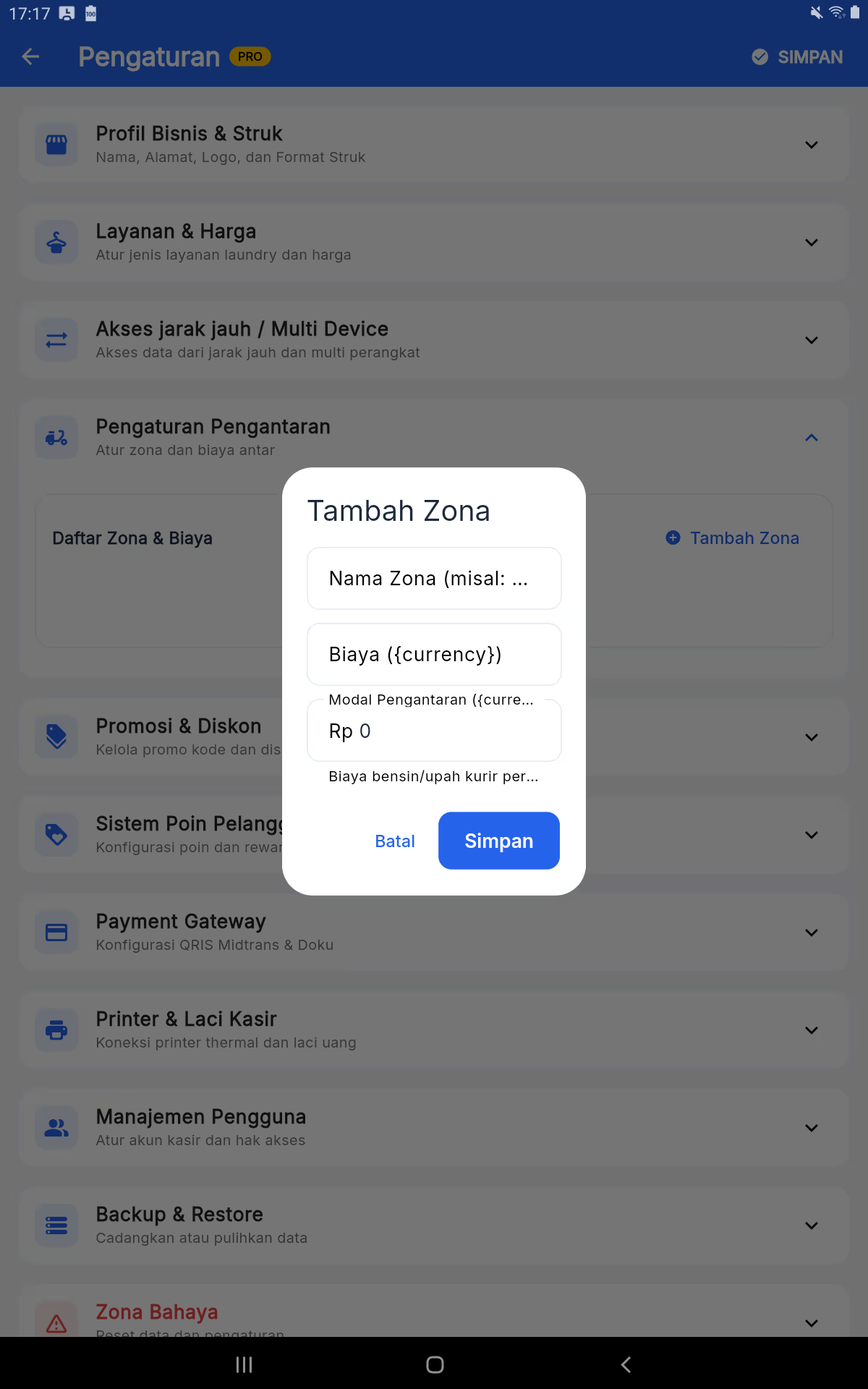
- Open it up. The Order → The Order of Delivery Then press the button. Adding Zone.
- Fill in the zone names that are easy for customers to understand and the cost of interchange. When used, fill the gasoline bill according to the company's policy.
- Save it, then make an intertest transaction and make sure the zones and the drawdowns appear with the correct denominations.
Promotions and discounts
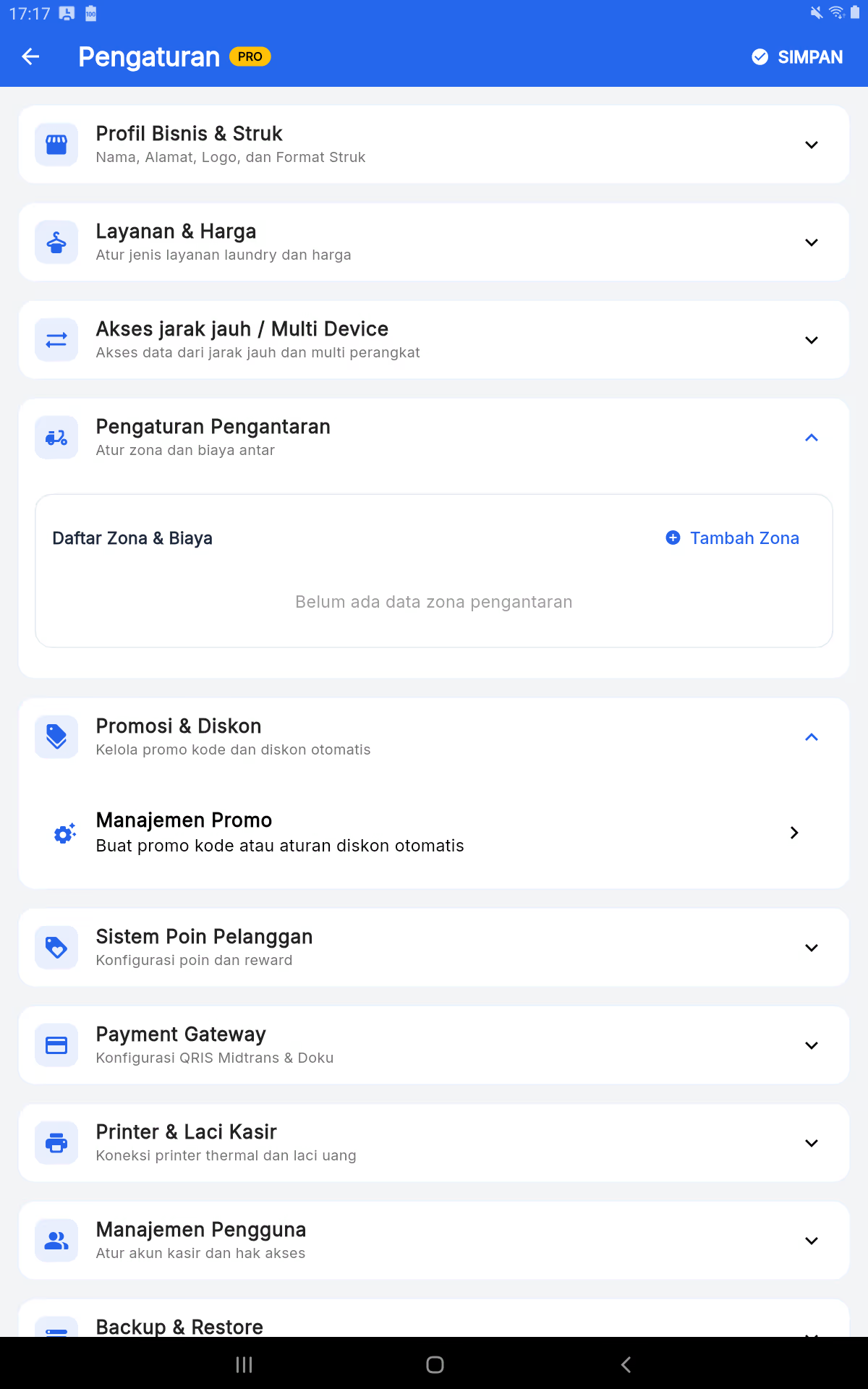
- Open it up. Adjustment → Promotion & Discount, then select promo management.
- Adjust the discount code/type, the applicable period, the minimum conditions, and the limits of use according to the business program.
- Save it and test it on the sample transaction. Check the whole thing before the promo is released to customers.
Thermal printers and cash registers
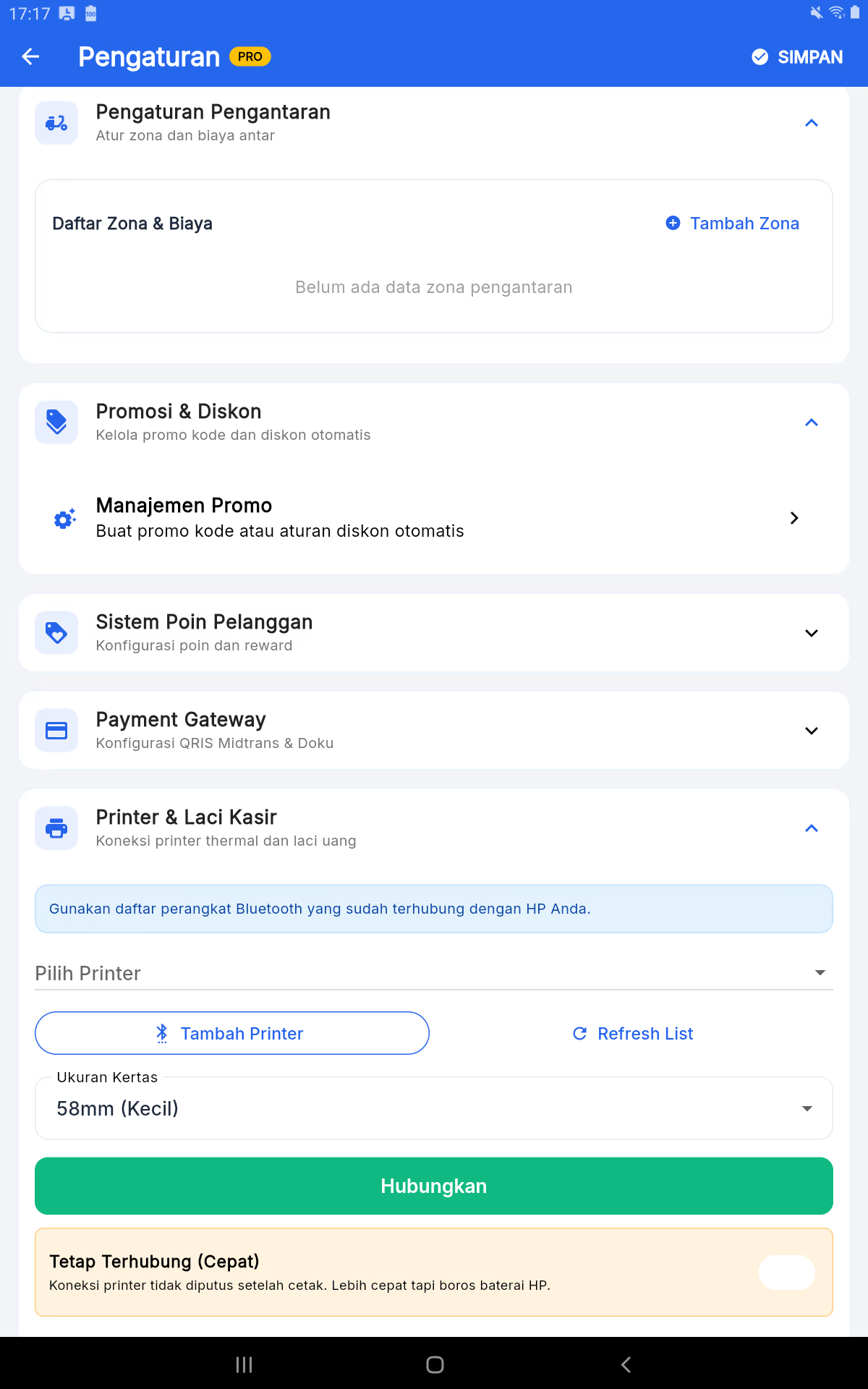
- Turn on the Bluetooth tablet and printer, then pair the printer from the Bluetooth settings. Android First of all.
- In the open app The Printer & Trash Can, select the printer, specify the size of the paper (e.g. 58 mm), and then press Connect.
- Use it Add the printer Or Refresh List If the device hasn't been seen yet. Test the prints before the cash register starts working.
Application printed strokes
This part is verified by the application thermal generator. The content on the register is customized to Business & Structural Profiles, invoice data, payment status, and QR/branding settings.
Transaction and payment structures
Printed content: logo when available, name/address/contact, invoice number, dates, customer, service, weight/number × price, total, discount, discount, payment, return, estimate completed or intermittent, payment method, footer, QR pickup (optional), and branding Kasirco (optional)
The moon: Displays Total, Payment, and Return if any. DP: What is it? It shows the DP markers, the DP value, and the rest to be paid. Not paid yet: Not yet showing the pay and nominal pay at the time of collection.
Example of payment structure arrangement
The name is USAHA
Address • WhatsApp
────────────────
The invoice is:
The date: DD-MM-YYYY HH:MM
Customer: The name of the customer
────────────────
The service
Berat/Jumlah × Harga   Total
────────────────
Total   Rp …
Bayar   Rp …
Payment method: ...
The estimate is complete: ...
Footer of the Business
QR Recall*
Powered by Kasirco*
The pick-up stroke
When choosing print on the page The take-up, the app calls for reprints for all items on the invoice. The basic format is the same as the transaction structure and the thermal printer adds the header It's not going to be over.. This is not a separate draft format.
Void strokes and delivery
The void: The thermal printer adds the VOID header, the reason for cancellation, and the user name that voids before the invoice details. Delivery: When the interim is completed and printed, the register lists the interim order information, the interim estimate/address, and the invoice payment details.